
Best Practices
Optimizing Native and Hot Update Package Size
iOS Native Package Optimization (ipa)
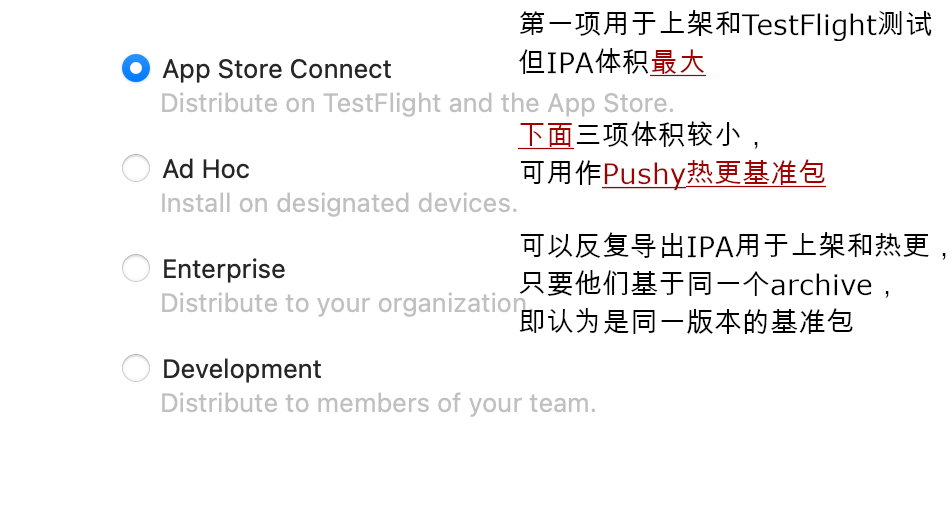
For the same archive (where version number, build time, and bundled js are fixed and unaffected by the export method), you can export the ipa multiple times with different options and choose the smallest one to upload to the Cresc server as your update baseline.
Android Native Package Optimization (apk)
APK optimization primarily focuses on two areas:
- Enable Proguard to obfuscate and shrink code. Note that this step might cause runtime errors for code using reflection. Exhaustive testing is required after enabling, and you might need to add specific Proguard rules for third-party libraries.
- Build separate APKs for different CPU architectures. Find the CPU architecture section in
android/app/build.gradleand enable theenableSeparateBuildPerCPUArchitectureoption as shown below:
This will output multiple APK files in the build directory. For distribution and uploading to the hot update service, you only need to use the app-arm64-v8a-release.apk file, which significantly reduces the APK size.
Hot Update Package Optimization (ppk)
The primary content of a hot update package is the JS bundle and its referenced static assets (mostly images).
- JS Bundle Analysis: You can use third-party tools (like react-native-bundle-visualizer) to analyze which modules consume the most space in your JS files, and see if they can be replaced with lighter alternatives (e.g., replacing
momentwithdayjs, orlodashwithlodash-es). - Image Optimization:
- Use compression tools to crop and compress images without noticeable quality loss.
- If transparent pixels aren't needed, consider converting PNG formats to JPG.
- Consider image formats with higher compression ratios, such as WEBP (requires third-party native plugins like react-native-webp-format) or HEIF (supported natively on iOS 11 and Android 10+). Here is an image format comparison for reference: https://compare.rokka.io/_compare/#heif=40&jpeg=80&webp=80&av1=40&width=800.
Handling Multiple Channel APKs for Hot Updates
- If the channel APKs have differences in their
JS code or initial assets(no matter how slight, which results in different jsbundles), you must build separate APKs, upload, and bind them individually. You can write scripts to automate bulk operations using the CLI. - If the
JS code and initial assetsacross channel APKs are perfectly identical, consider using Flavor builds, or other dynamic channel generation tools (like Tencent's VasDolly or Meituan's walle). In this approach, all channel APKs are generated from a single base APK (thus sharing the same build timestamp and jsbundle). This means you only need to upload one base APK, and hot updates applied to it will take effect across all channel APKs. - Avoid distributing multiple native builds with the same version string but different build timestamps. Cresc can still deliver updates in that situation, but clients may start from different embedded bundles, which reduces diff reuse and can force larger full-bundle downloads or extra diff generation. Prefer one shared base APK for each version string, or publish a higher native version and upload that baseline before distribution.
Supporting the AAB Format
Update the react-native-update-cli to v2.6.0 or higher. You can then use the cresc parseAab and cresc uploadAab commands for .aab format support.
If the same Android version needs an AAB for Google Play and an APK for other channels, do not build them in separate Gradle invocations. Add an npm script to the root package.json so CI and local releases use the same entry point, running both assembleRelease and bundleRelease in the same Gradle invocation. If your project already has a scripts field, add only this script:
This produces android/app/build/outputs/apk/release/app-release.apk and android/app/build/outputs/bundle/release/app-release.aab from the same release build, keeping their build timestamps aligned. Distribute the format required by each channel: AAB for Google Play, APK for direct installs or third-party markets. If your project uses flavors, switch the npm script task names to the actual variant tasks, such as assembleProdRelease and bundleProdRelease.
Testing and Rollbacks
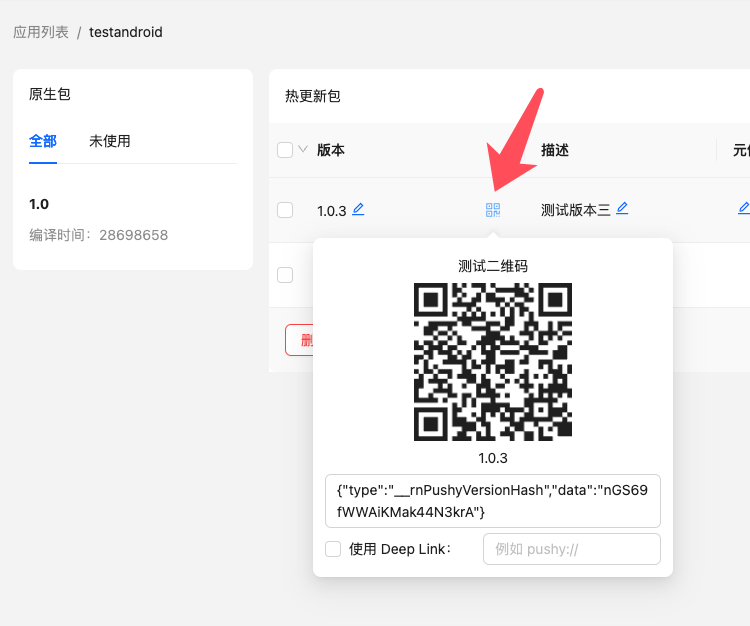
Starting from version v10.11.2, you can use two quick QR code scanning methods to test hot updates without needing to bind them beforehand:
- If your app has Deep Linking enabled:
No code changes are required. Simply check "Use Deep Link" in the interface shown above, enter your app's scheme (e.g., cresc://), and scan the QR code using your system camera or a standard QR scanner that supports deep links. The app will automatically open and trigger the update.
- If your app has a built-in barcode scanner:
Please refer to the documentation for the parseTestQrCode method.
If your app doesn't have either feature, or your Cresc version is below v10.11.2, use this test setup (Not Recommended)
Publish an internal test package, and then publish a production package that is identical in every way except the version number.
For example, assuming your production package version is 1.6.0, you can modify it to 1001.6.0 to clearly indicate it's a test version, while the matching ending digits indicate it is related to a specific production release (identical content/dependencies).
Before pushing any hot update to the production package, always perform the update operation targeting the test package 1001.6.0. Once testing passes, you can then re-bind that hot update package to the production package 1.6.0 in the web console. If major issues are found in the test package, you can fix them, test again, and only deploy securely to production when ready. This maximally prevents live accidents.
If your testing native package already has a published hot update and its strategy is set to "Apply Immediately", this might conflict with QR code scanning (e.g., immediately overriding the QR code preview with the published version). To prevent this, you can use the beforeCheckUpdate callback to temporarily disable update checks after scanning a QR code until the next restart.
In the worst-case scenario where a production crash happens and requires a rollback, immediately set the native package or the whole app's hot update status to 'Paused', then re-bind it to a previously healthy version. Alternatively, use your VCS to revert code to a healthy state and generate and push a new hot update package.
Using Meta Info
When publishing a hot update version, or via the web console, you can edit the version's meta info. This is a customizable payload string obtained during the update check. You can format it however you like (we strongly recommend JSON format) to store additional payload data.
For example, we might define a silent flag indicating whether an update should be completely silent. When uploading the hot update package, we put this in the meta info field in JSON format:
Note: We do not enforce any format validation or restrictions on this input. Please validate it yourself.
When the client checks for updates, it receives this meta info chunk, but it doesn't automatically trigger any logic—it's just a payload string. Thus, we need to preemptively integrate handling logic into our update flow:
We can splice meta-info reading and conditional logic into the standard flow:
As another example, a specific version might include major announcements, so you could insert an announcement field in the payload to render. How you use meta info is entirely constrained.